More than a quiz platform.

Candidate Guide

Step-by-step guidance, from the email landing in your inbox to finding out what’s next. You won’t need a password or a candidate account. Where identity verification is required, have your ID or passport ready; assessment files are uploaded only where a question specifically asks for one.

Screenshots show example assessments; your role, questions, dates and required checks may differ. The room diagram is an illustration.

1

Check your inbox

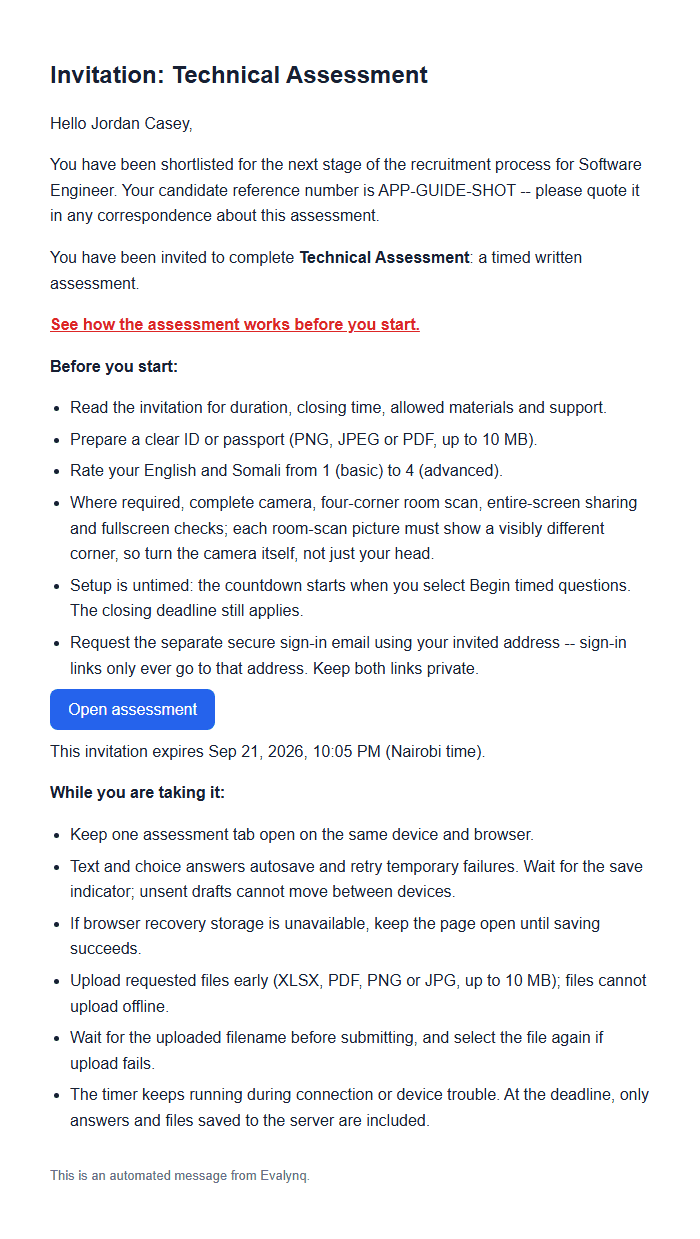
The recruiting team sends a personal invitation to your email address for one specific assessment.

  • The role, assessment name, duration, completion deadline, and a personal note if the recruiter added one.
  • One link to open the assessment — it's unique to your invitation.
  • Open it before the stated deadline. If the link or details look wrong, use the support address shown on the invitation page.
  • Taking the assessment is always free for you. Any fees are paid by the recruiting organization, never by candidates, and you will never be asked for payment details.
The invitation email, showing the assessment name, an Open assessment button, and the expiry date
2

Read before you begin

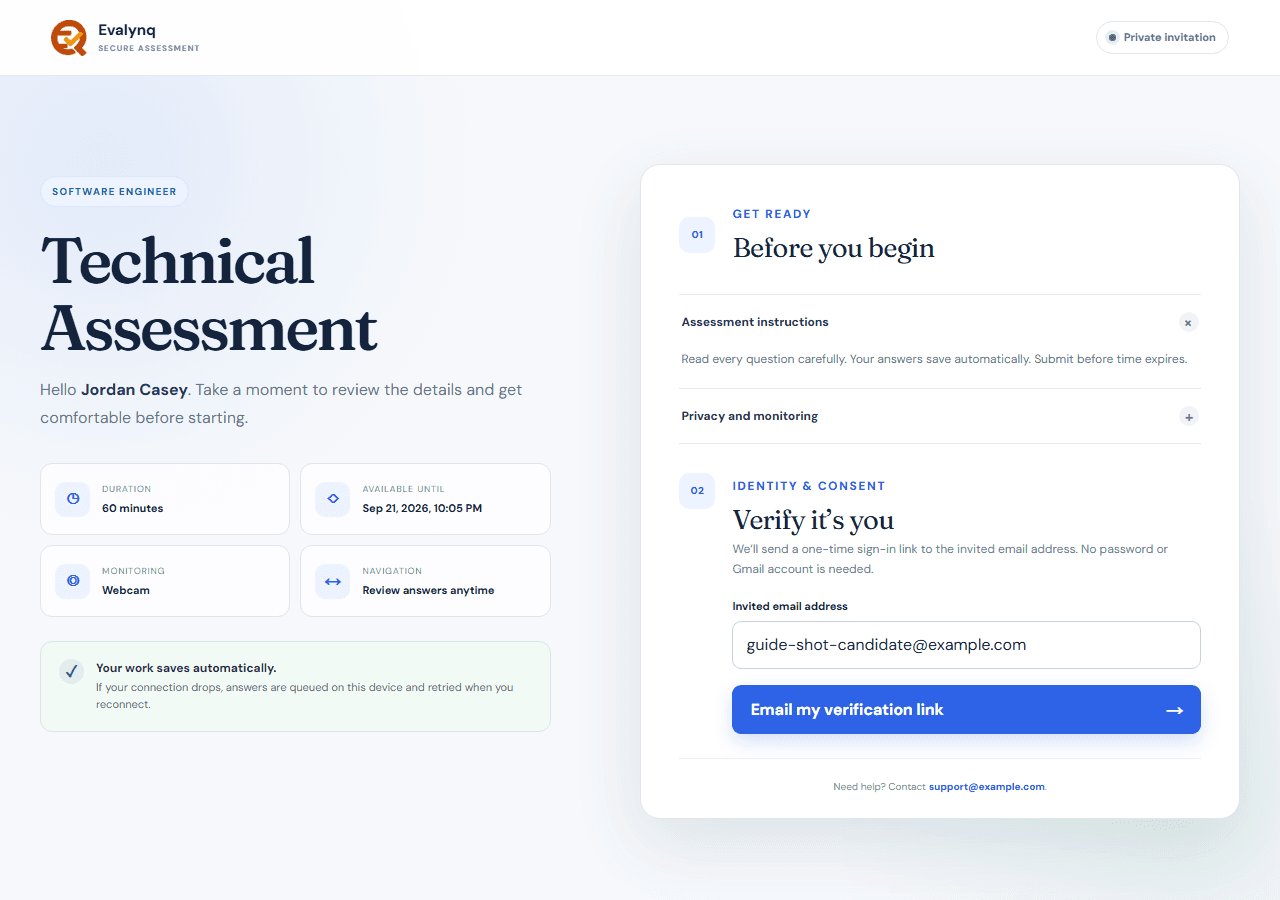
The link opens a page with everything you need to know before agreeing to anything — no surprises later.

  • The role, assessment name, exact duration, navigation rules, and final availability time.
  • Full instructions, automatic-save information, and the privacy notice before you consent or the timer starts.
  • Where identity verification is required, the privacy section explains that your ID or passport file is private, who may review it, and the exact number of days before it is deleted.
  • If monitoring applies: which checks are required, how often periodic captures are taken, how long evidence is retained, and when an extra webcam still may be captured to give a reviewer context.
  • Camera-enabled assessments also disclose the four-corner room scan; screen-share assessments explain that you must choose your entire screen.
  • A support email, in case anything looks wrong.
The assessment invitation page, showing the role, duration, and instructions before starting
3

Confirm it's you

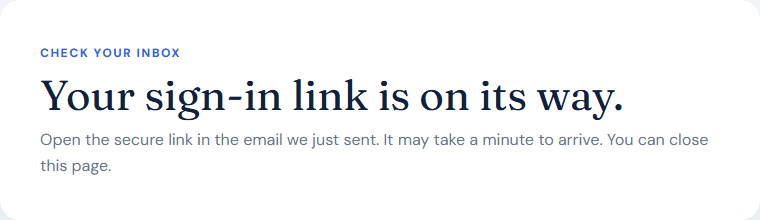
A second email arrives with a secure, one-time sign-in link — no password or candidate account to create.

  • The sign-in message is sent only to the address named on the invitation — that field is fixed and can't be changed to a different address; click the link to return directly to the assessment page.
  • Each link works once and expires — if it stops working, just request a new one.
  • If your browser is signed in with a different address, the page lets you sign out and continue with the invited email.
Why two emails?Separating the invitation from sign-in confirms only you — using the invited address — can start the actual attempt.
The confirmation page shown after requesting a sign-in link, telling you to check your email
4

Complete the readiness checks

Consent comes first. The page then guides you through only the camera, screen-share, and fullscreen checks configured for your assessment.

  • Confirm you've read the assessment rules and the privacy notice.
  • Where identity verification is required for this assessment, upload a clear photo or scan of your government-issued ID or passport.
  • Sign the integrity declaration, confirming you'll complete the assessment honestly and independently.
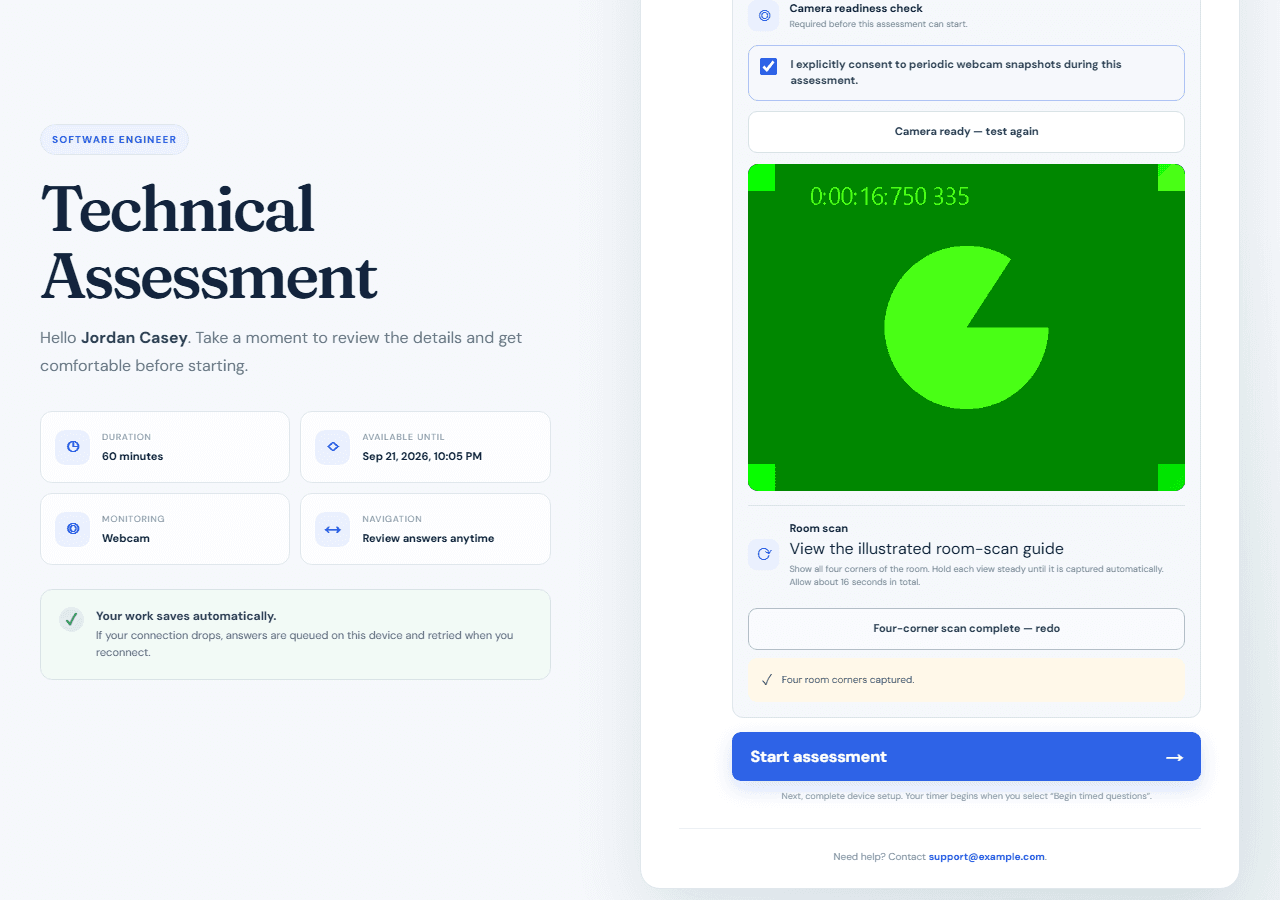
  • If webcam monitoring applies, tick a separate, explicit consent box and test your camera — you'll see your own live preview.
  • For a camera-enabled assessment, show the front-left, front-right, rear-right, and rear-left room corners. Hold each view steady for about four seconds; all four images take about 16 seconds in total.
  • If screen sharing applies, consent separately. On the device setup page, choose Entire Screen in the browser prompt; restore fullscreen with the button if your browser requires a click.
  • Start assessment stays disabled until every required check is complete. Where required, your ID file and all four room images are securely stored before the server prepares your attempt; if any required upload fails, the attempt does not start. The timer never runs while you read or complete the readiness checks.
The verification and consent step with the camera test and room scan complete, and the Start assessment button enabled
5

Scan your room in four pictures

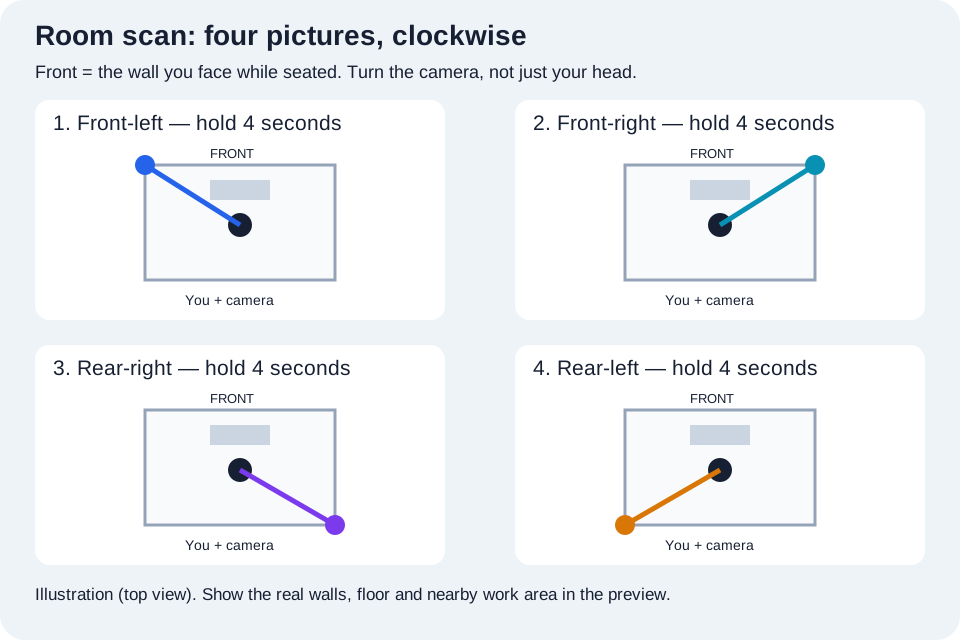
Required only when camera monitoring is enabled. Plan the four views in the diagram before selecting Capture four room corners.

  • Choose a quiet, well-lit room. Clear unauthorized notes and devices from your desk, close unrelated applications and connect your charger. Follow the rules in your invitation.
  • Front means the wall you face while seated. Point your laptop camera or movable webcam toward the front-left corner, then select Capture four room corners.
  • Follow the prompts clockwise: front-left, front-right, rear-right, rear-left. Show the walls, floor and nearby desk area. Turn the camera itself; turning only your head does not show the room.
  • Each picture is taken automatically after four seconds. Move promptly when the next corner is announced and hold steady. The four captures take about 16 seconds.
  • The app checks that each picture actually shows a different view from the last. If you hold the camera in the same spot, the scan stops and asks you to try again -- turning your head or eyes without moving the camera itself does not count.
  • Wait for the Room scan complete confirmation, then return the camera to face you. If a view was blurred or missed, select Redo scan before continuing.
  • Do not unplug or stretch a camera cable. If your device cannot safely show every corner, contact the support address in your invitation before beginning the timed questions.
Four top-view room diagrams: point the camera from your seat to the front-left, front-right, rear-right, and rear-left corners, holding each for four seconds.
6

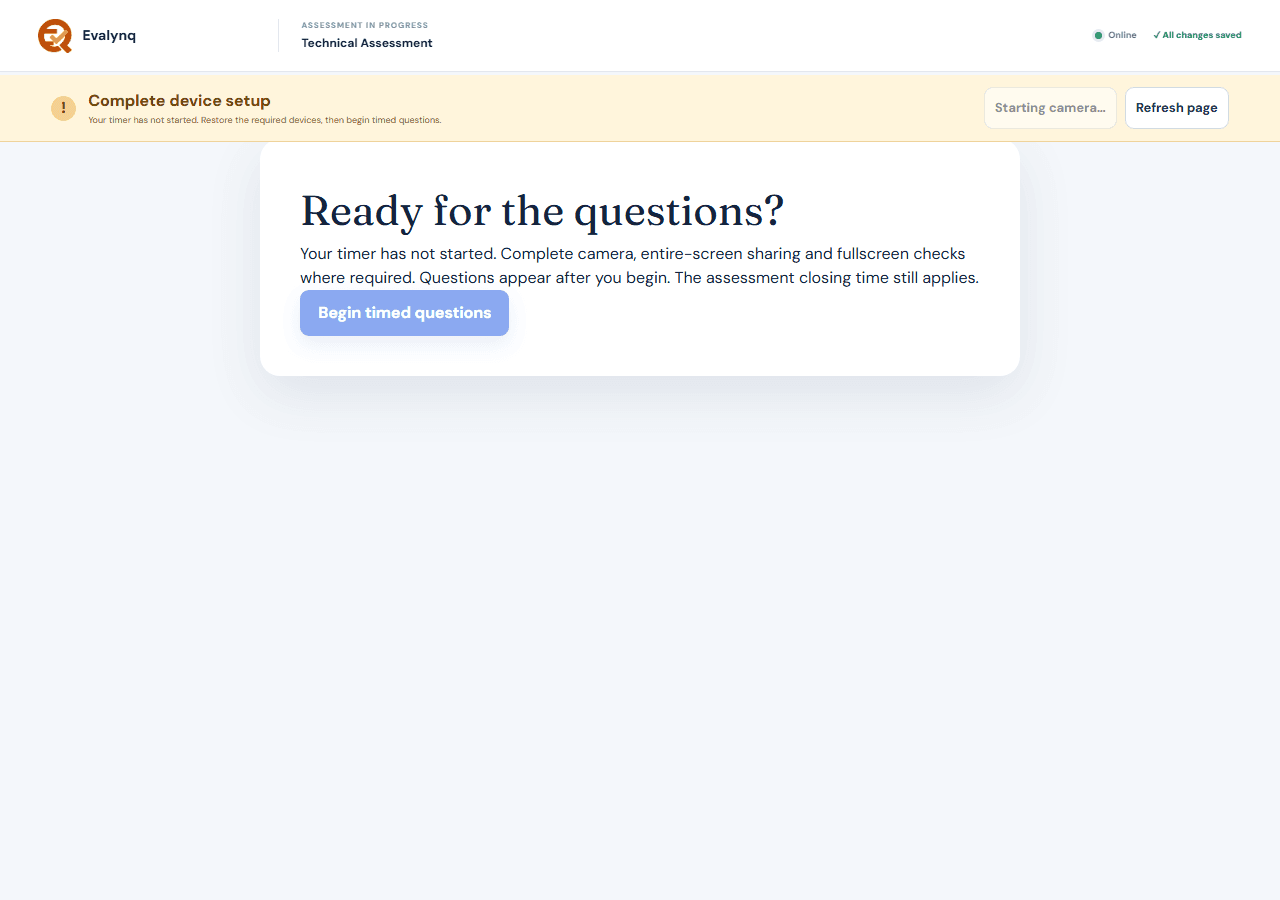
Begin timed questions

Once every required check above is complete, you control exactly when the clock starts — not the app.

  • This screen confirms your timer has not started yet. If anything still needs attention (camera, screen share, or fullscreen), it's listed here before the button unlocks.
  • Reading this page and completing every check above it costs you no time at all — the countdown has not begun.
  • Select Begin timed questions only when you're ready to proceed straight through. The server starts the countdown at that exact moment and loads the first question immediately after.
  • The assessment's published closing time still applies regardless of when you begin, so don't wait until the last minute.
The "Ready for the questions?" screen shown after device setup is complete, with the Begin timed questions button and confirmation that the timer has not started yet
7

Take the assessment

A server-timed countdown, automatic saving, clear progress, and question-by-question navigation.

  • The clock is controlled by the server, not your device. Refreshing, closing the tab, or going offline does not stop it.
  • Text and choice answers save automatically. Temporary failures retry every five seconds while online, and queued answers retry when you reconnect. Wait for the save indicator before closing the page.
  • Unsaved drafts recover only in the same browser on the same device, with browser storage available. If a storage warning appears, keep the page open until answers are saved. Switching devices or clearing browser data cannot recover unsent drafts.
  • A question may provide a reference file to download. A file-upload answer accepts XLSX, PDF, PNG, JPG, GeoJSON, GeoPackage, or a zipped Shapefile, up to the size limit shown on the upload field, and shows the uploaded filename when successful.
  • Files are not queued offline. Keep the page open while uploading; navigation and submission wait until the upload finishes. If it fails, select the file again. Upload well before the deadline because the timer keeps running.
  • If required camera, screen share, or fullscreen access stops, other answer controls pause until it is restored. A file-upload question stays usable so you can finish the file it specifically asks for.
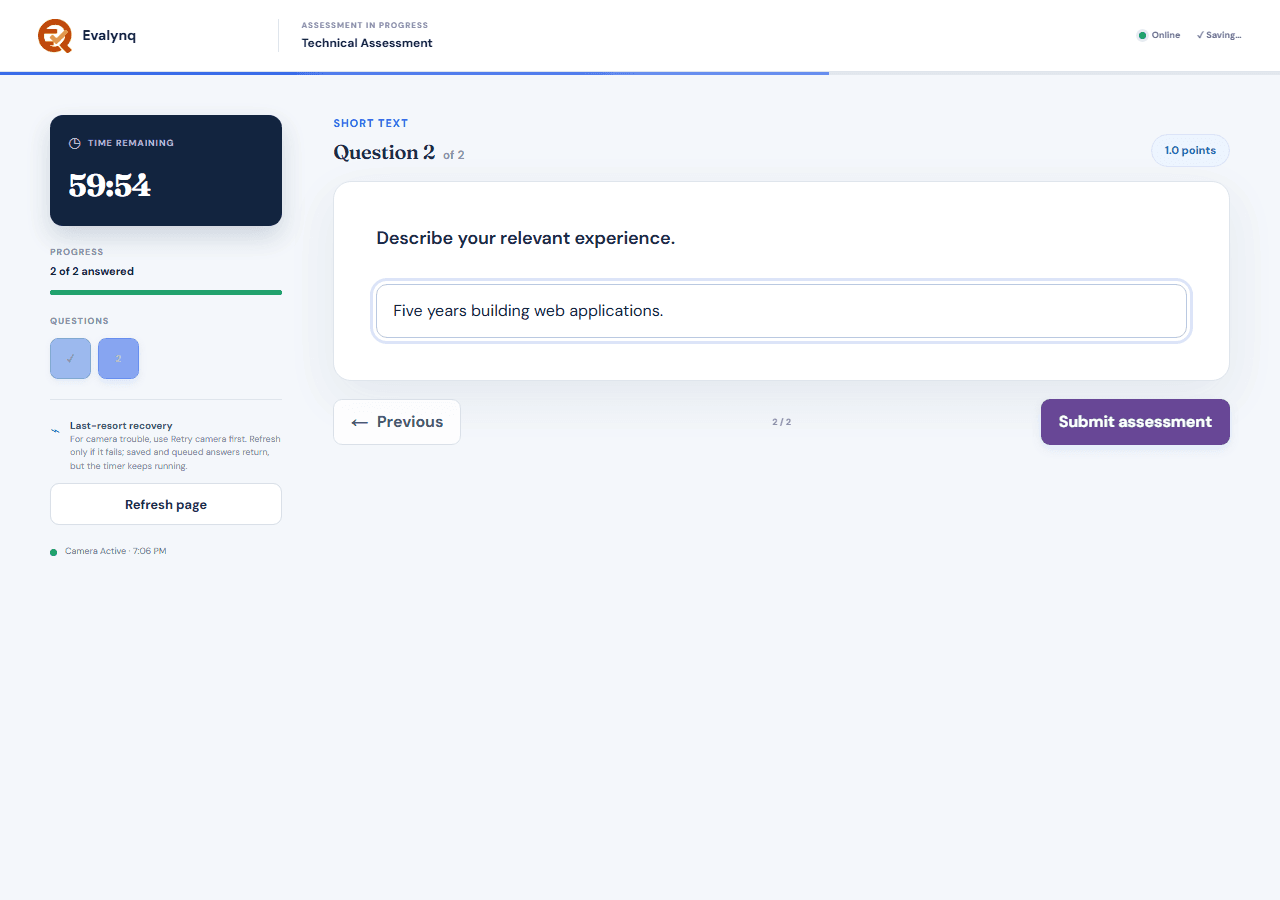
  • If the camera stops, automatic recovery runs first. If the assessment remains paused, select Retry camera; only if that fails, use the page's Refresh page button. The same attempt reopens without another email sign-in, saved and locally queued text or choice answers return, and the timer continues throughout.
  • If the camera is still live but an evidence upload is temporarily delayed, the status says evidence upload retrying and answering continues while the upload retries.
What monitoring is (and isn't) forMonitoring uses still webcam images, still screen captures, and browser events — never continuous video, continuous screen recording, or facial recognition. In addition to the disclosed interval, a webcam still may be captured when the tab is hidden, the window loses focus, or fullscreen exits. Signals can route an attempt to a person for review, but never make a hiring decision or reject you automatically.

The assessment screen, showing the timer, question progress, answer field, Retry camera guidance, and the last-resort Refresh page button
8

Submit when you're ready

Submit any time you're finished, or let the timer do it for you — either way, nothing after that point can be changed.

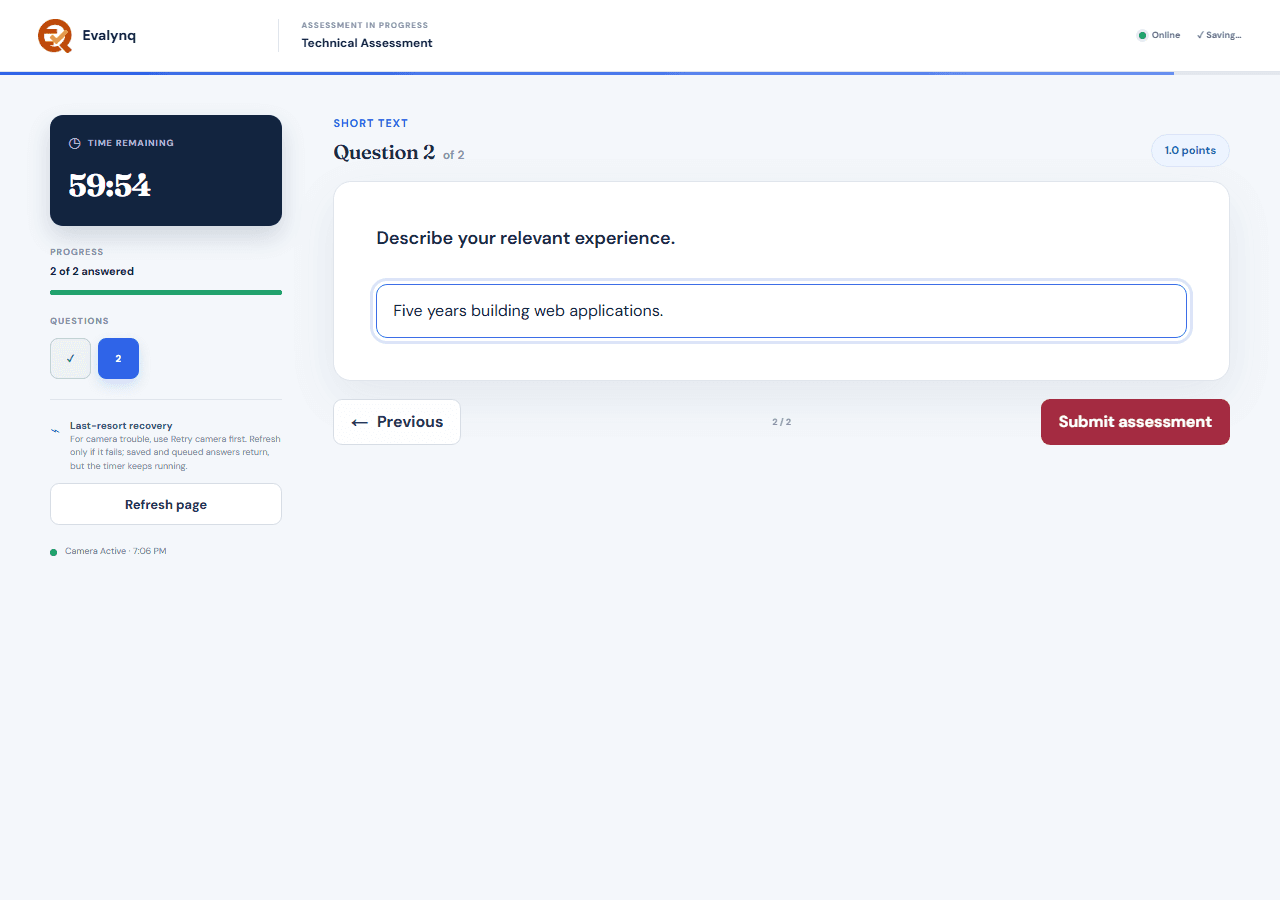
  • Before submitting, check the save indicator and make sure every required file shows as uploaded. A confirmation step then double-checks that you're ready.
  • If time runs out first, your last saved answers are submitted automatically — no action needed from you.
  • Once submitted, answers are securely locked and can no longer be changed.
The final question answered, with the Submit assessment button ready to click
9

See what's next

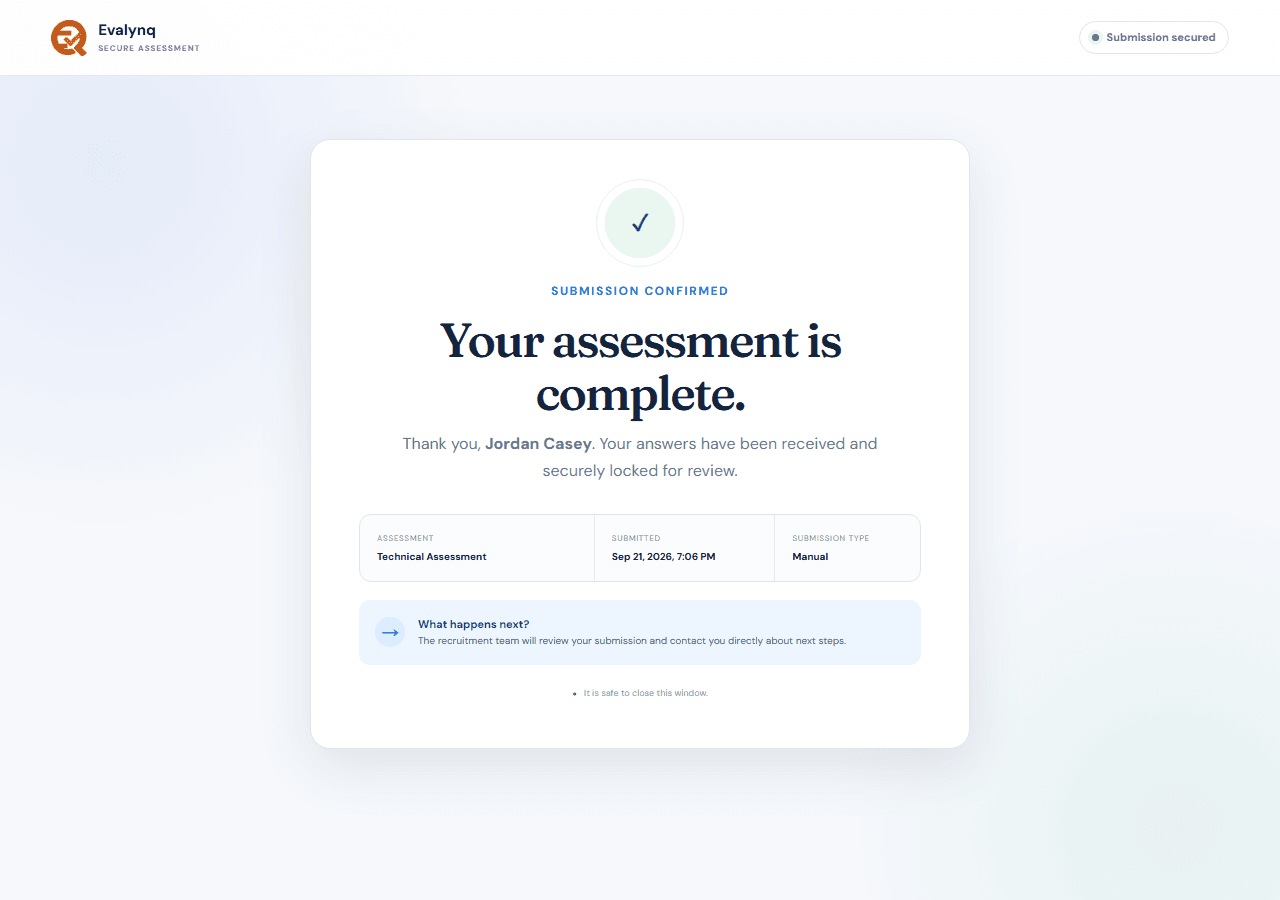
You'll always get a submission receipt. Whether a score appears later depends on how the recruiting team configured the assessment.

  • Where scores are published, they remain hidden until staff finish grading and monitoring review and explicitly release the result.
  • After release, reopening the completion page shows the points and Pass or Not passed outcome, plus a downloadable PDF certificate.
  • Other roles show only the submission receipt and the recruiting team follows up directly. Both are normal outcomes.
  • If the recruiting team shortlists you, you may receive a separate interview invitation email with a date, time, and location — sent from the same recruiting organization, after they've reviewed your assessment.
  • If staff reset an attempt, that result becomes invalid and you must use the replacement invitation sent to your email.
Why isn't my score shown instantly?Even an assessment with automatically scored questions waits for the required staff reviews and an explicit release before anything is shared with you. That is a deliberate safeguard, not a browser problem.
The submission confirmation page, showing the assessment name, submission time, and what happens next

If something goes wrong

Most disruptions during the timed questions resolve themselves or take one click to fix. Work through these in order — from least to most disruptive — before contacting support.

The room scan keeps stopping partway through

  • Each of the four pictures has to show a visibly different view from the one before it — the app checks this automatically. Turn the camera itself toward each corner; turning only your head or eyes doesn't change what the camera sees, so it won't pass.
  • If you're using a fixed laptop camera, turn the whole laptop, or your chair, so the camera actually points at each corner in turn.
  • This resets the whole four-corner sequence, not just the step that failed — select Capture four room corners again and move a little more deliberately between prompts.

A required check shows an error, but you didn't disconnect anything

  • Try Retry camera or Share your screen first — this is usually a brief upload hiccup, not a real disconnection.
  • If the status simply says "evidence upload retrying," no action is needed. It's working in the background and clears on its own; your timer is unaffected either way.
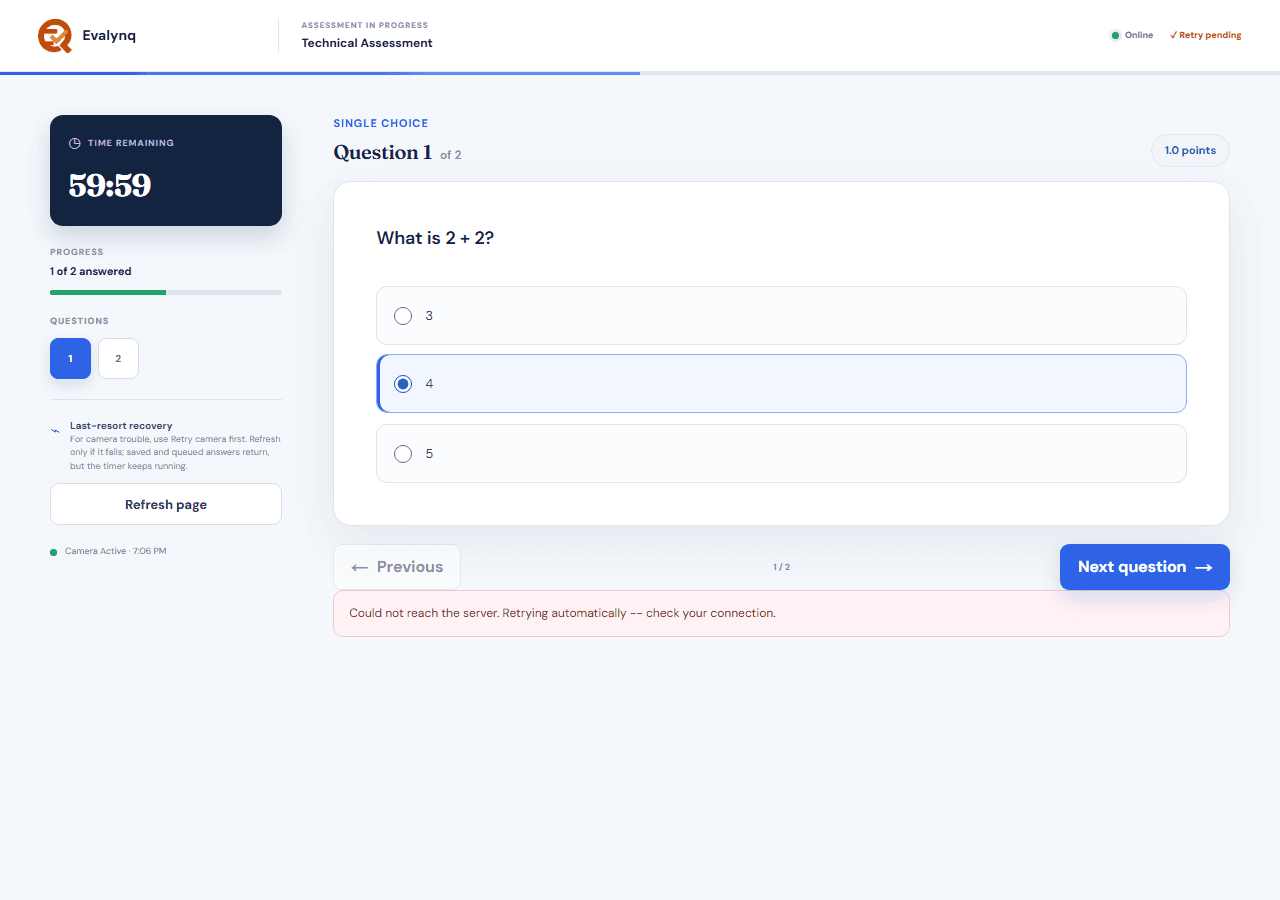
  • The same applies if an answer save briefly says "Retry pending" — a temporary connection hiccup, not a lost answer. It retries automatically every few seconds.
The assessment screen showing a "Retry pending" save status after a brief connection failure, with the Refresh page button visible in the sidebar

Retry didn't help and the page seems stuck

  • Use the Refresh page button. It reloads the assessment in the same signed-in session — saved and locally queued answers return, the required checks restart, and the server-side timer is untouched throughout.

Refresh doesn't work, or you've lost the page entirely

  • This covers closing the browser, switching devices, clearing cookies, or a sign-in that's simply expired.
  • Go back to your original invitation email and open the assessment link again.
  • Since you already started, you'll be asked to verify your identity again — request a new one-time sign-in link the same way as before, using the invited address.
  • Signing in returns you straight to your in-progress assessment, not a new attempt. Every answer you already saved is still there, and the timer has kept running the whole time — it never pauses or restarts while you're getting back in.
  • You won't be asked to redo your ID upload or room scan — those are already on file for this attempt.

The page says the assessment isn't available

  • This means the recruiting team hasn't opened the assessment to candidates right now. It may not have opened yet, may already have closed, or may be temporarily paused on their side.
  • Nothing is lost and nothing has started: no timer runs and your invitation stays valid until its stated deadline.
  • Check the opening time in your invitation, try again later, and contact the support address on the invitation page if it stays unavailable.

Don't open the assessment in two places at once

  • Signing in from a second device or a second browser tab while the first is still open can show two different, conflicting views of your progress. Close one before continuing on the other.

Running out of time while troubleshooting

  • At the deadline, only answers and files successfully saved to the server are included. Offline drafts and unfinished uploads cannot be accepted after time expires. Reconnect promptly and contact the invitation's support address if you cannot continue; include your application reference and error message, not your ID or answers.

Monitoring signals, where a role uses them, are advisory. They may route an attempt for human review, but they never make a hiring decision or reject a candidate automatically. Still stuck after trying the steps above? Contact the support address shown on your assessment invitation page, with your application reference.