More than a quiz platform.

Getting started with Evalynq

A step-by-step walkthrough for the organization running the assessment — from creating an account to releasing a result. Looking for the candidate's side instead? Read the candidate guide.

1

Create your account

Create your Evalynq account with your work email — no credit card required. Draft assessments are free to build.

  • Verify your work email address — there's no password to create.
  • Signup uses your organization or work email; personal addresses such as Gmail, Yahoo, or Outlook aren't accepted for creating a new organization.
  • Creating an account and building draft assessments are free. A live assessment requires payment verification and activation unless a platform administrator explicitly grants your organization an Early Access trial.
  • An Early Access trial, when granted, covers one assessment and 1–10 candidate starts for 30 days from the grant. It waives payment only; your plan entitlements still apply.
  • You land in an empty workspace with one synthetic demo assessment already there, so the dashboard isn't blank on day one.
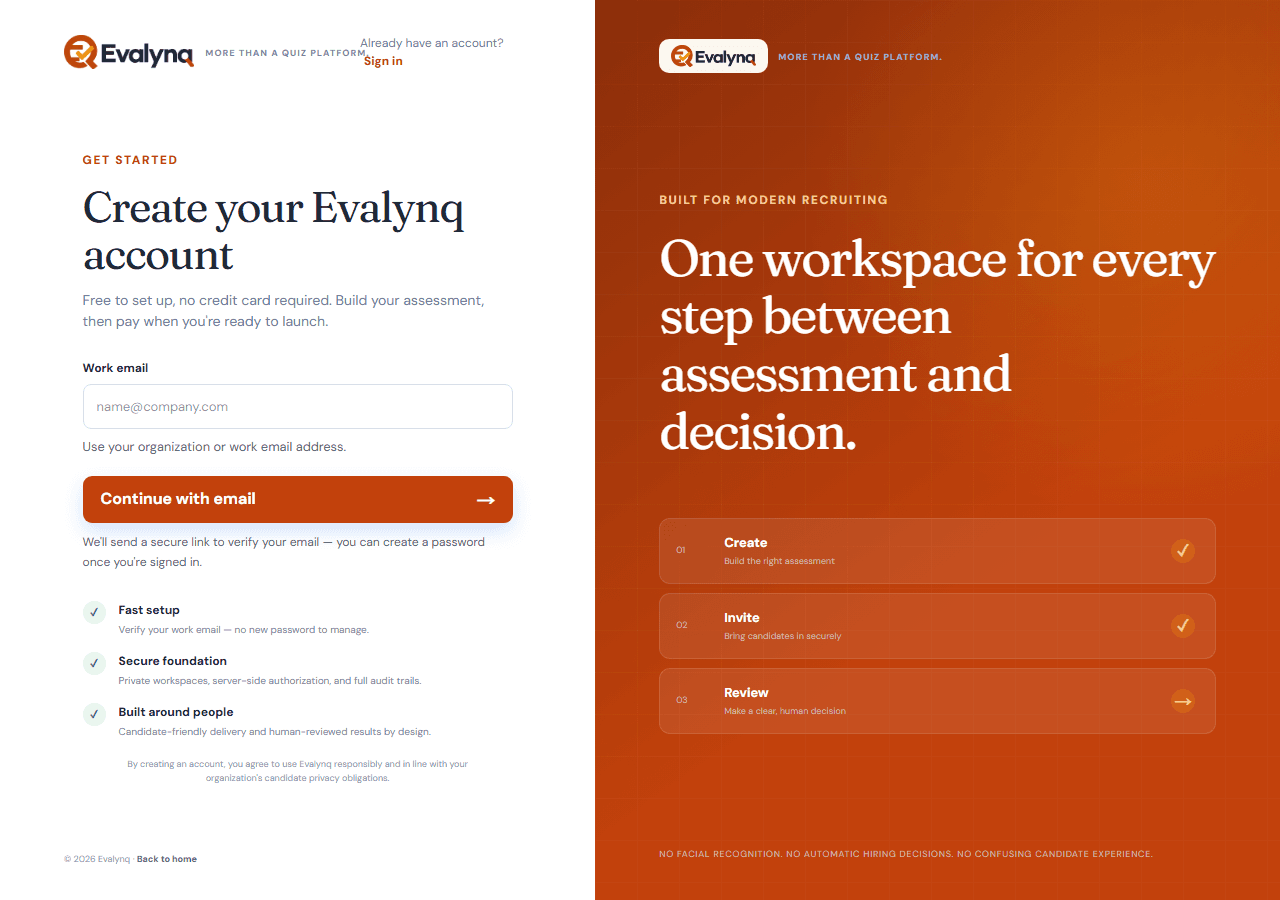
The Evalynq sign-up page, showing the work-email signup form
2

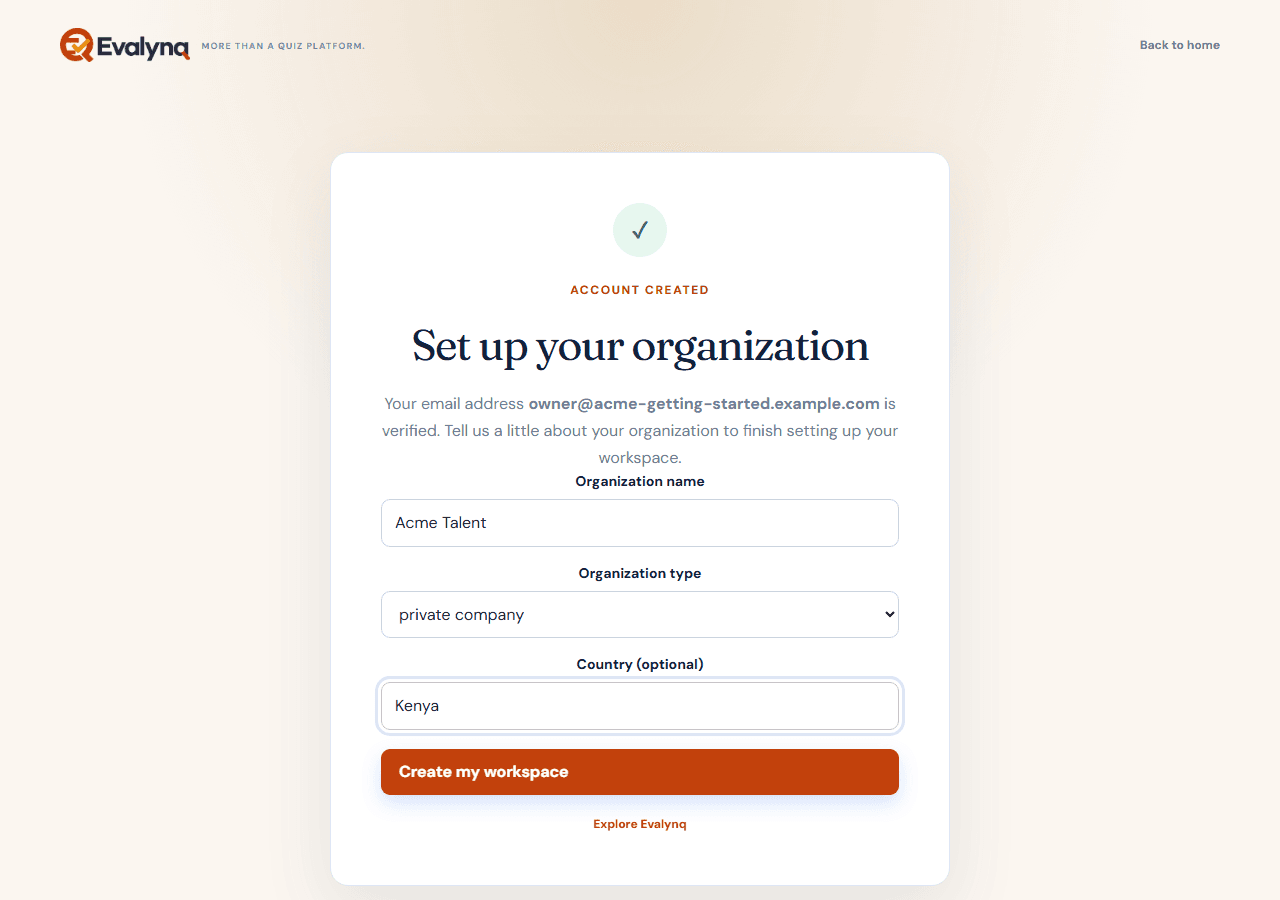
Set up your organization

One short form: organization name, type, and country.

  • Organization type (private company, NGO, government, etc.) and country are used for your own records — they don't restrict anything in the product.
  • You become the organization's Owner automatically. Owners and Admins can invite teammates, manage billing, and change settings.
The "Set up your organization" form, showing organization name, type, and country fields
3

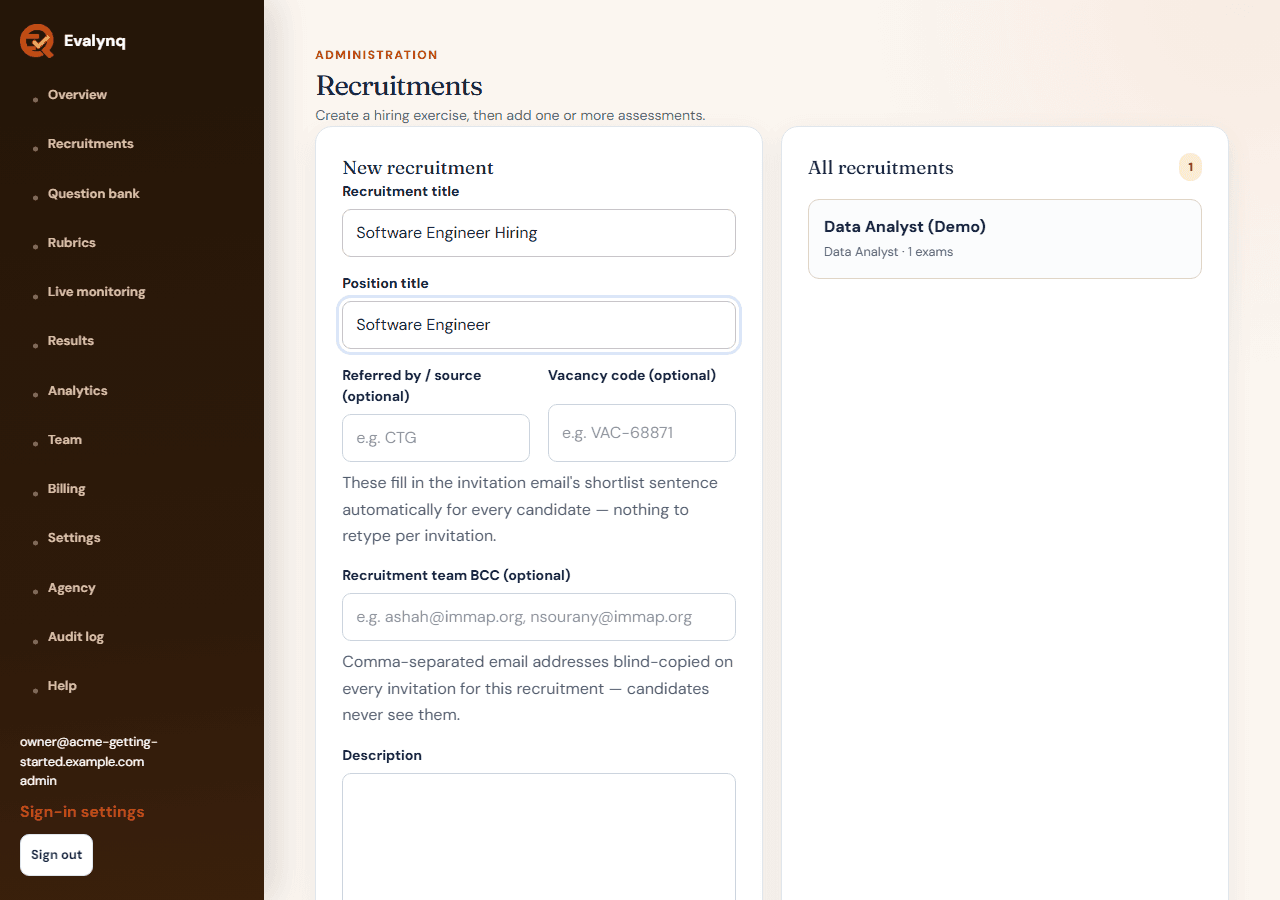
Create a recruitment

A recruitment is the container for one open role — usually one recruitment per position you're hiring for.

  • Give it a title and a position title. Optionally set a referral source and vacancy code — these compose the "you have been shortlisted..." sentence in the invitation email automatically, so you don't retype it per candidate.
  • A recruitment can hold more than one assessment, if a role needs more than one stage.
The recruitment creation form, filled in with a title and position title
4

Create an assessment

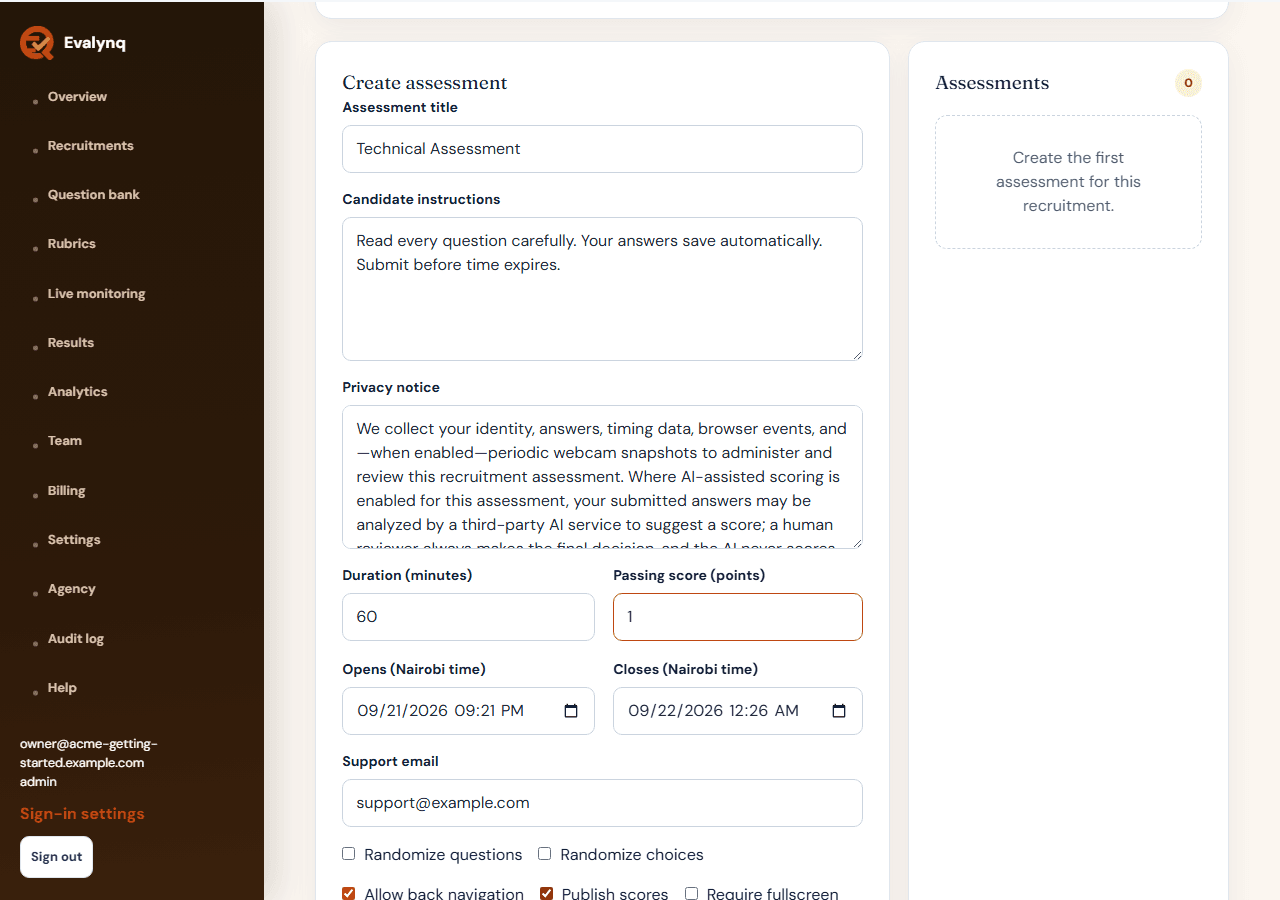
Inside the recruitment, add the assessment itself: duration, window, and rules.

  • Set the opening and closing time (Africa/Nairobi time), a passing score, and whether scores are published to candidates at all.
  • Turn on webcam or screen-share monitoring if the role needs it — each requires the candidate's own separate, explicit consent before it activates. Neither is required to use Evalynq at all.
  • Identity verification (a government-issued ID or passport upload before starting) is also its own separate toggle, off by default — turn it on only for assessments that actually need it.
  • Optional per-recruitment branding (a logo and accent colour on the candidate-facing pages) is available for eligible organizations — ask Evalynq if you need it.
The "Create assessment" form, showing title, opening/closing time, passing score, and monitoring options
5

Add questions

Mix multiple-choice, written, and practical file-upload questions in the same assessment.

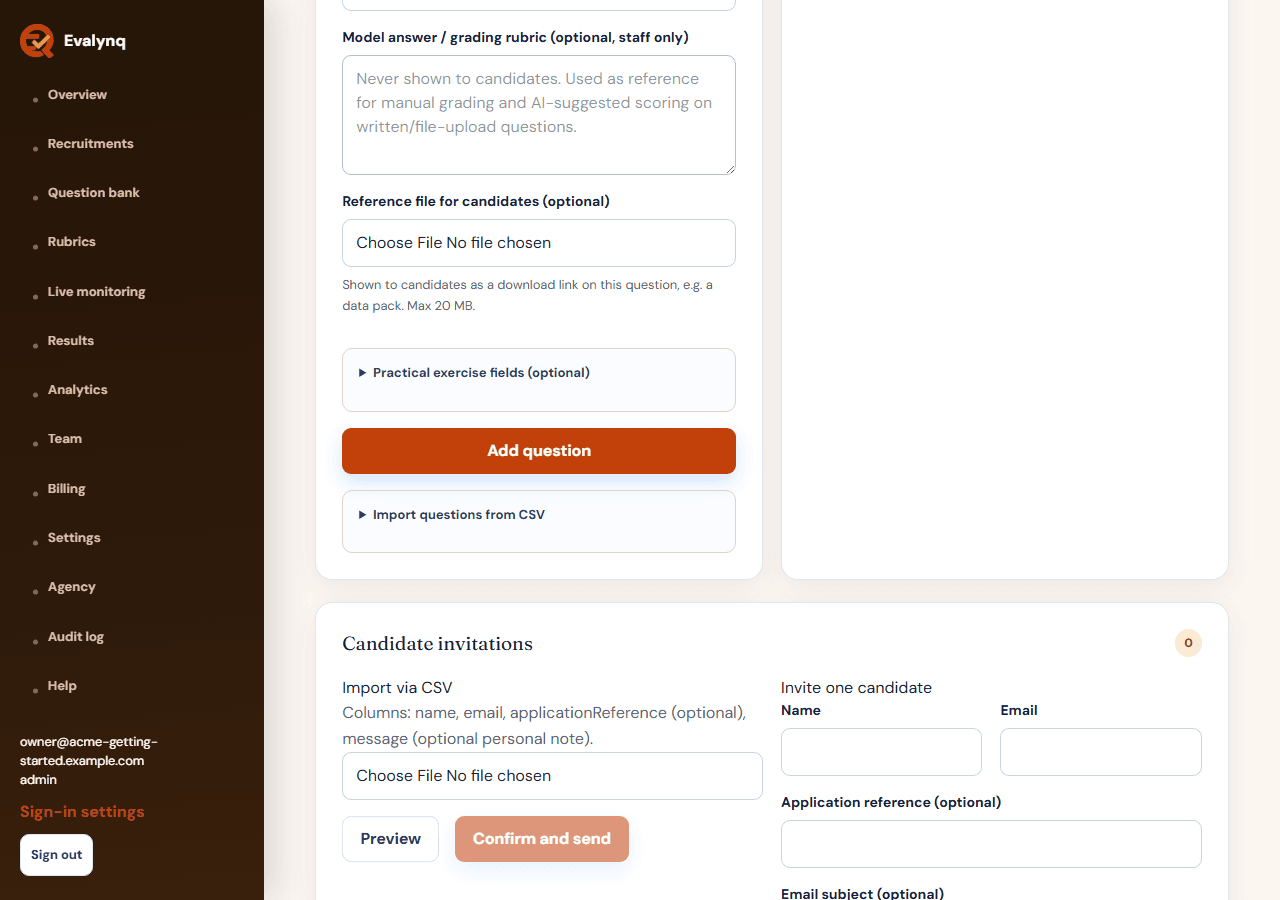
  • Add questions directly, pull them from your reusable question bank, import a CSV (including a reshaped Google Forms export), or generate draft questions from a job description with AI — you review, edit, or discard each draft before it's added; nothing publishes automatically.
  • Multiple-choice and multiple-select questions score automatically at submission. Written and file-upload questions always go to manual review.
  • For a practical exercise, attach reference files (a brief, dataset, or template) and a scoring rubric from Rubrics, so every reviewer scores the same criteria the same way.
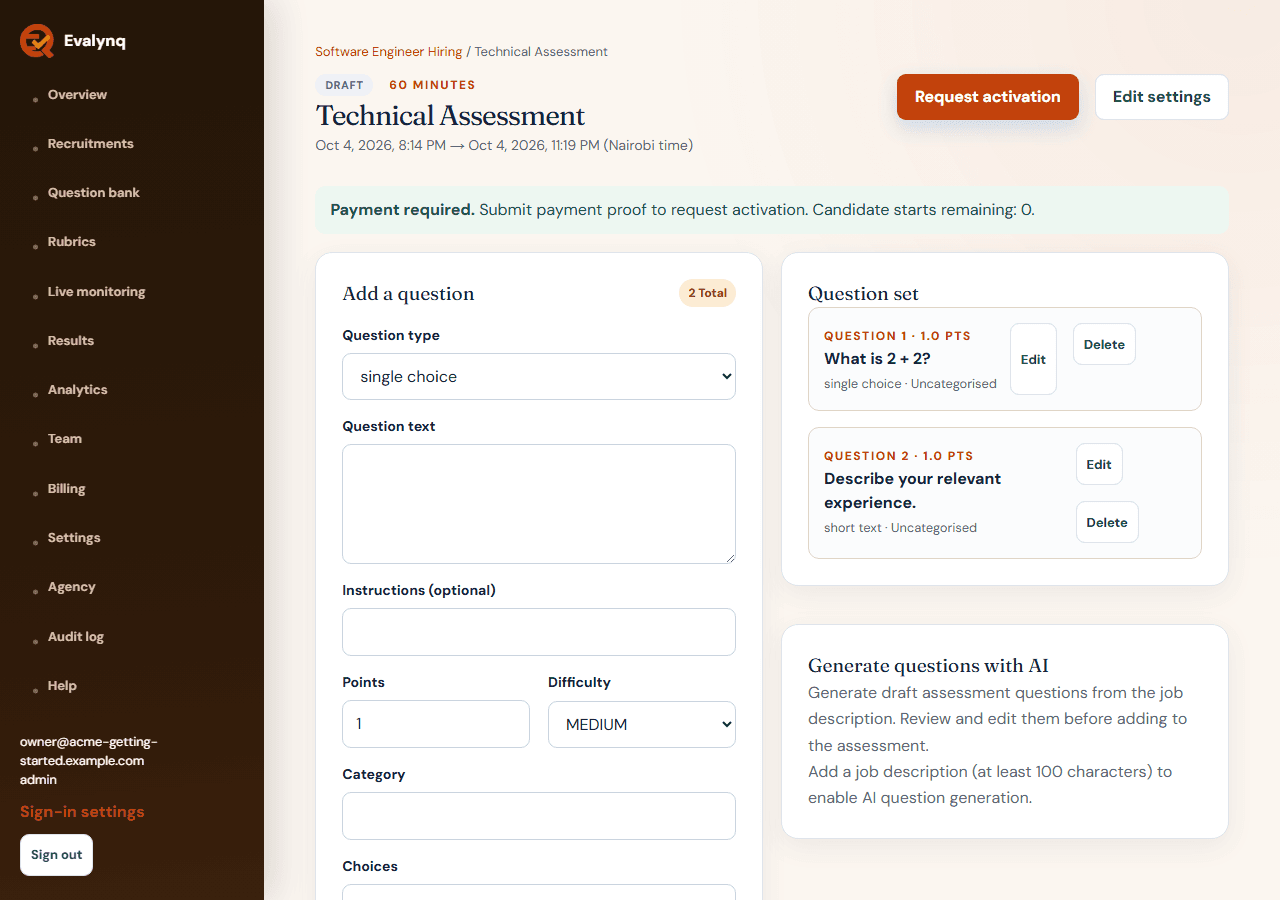
The assessment page with two questions added, and the add-question form ready for the next one
6

Publish or request activation

New organizations need payment verification and platform-admin activation before an assessment goes live. A platform administrator may instead grant a one-time Early Access trial.

  • For paid capacity: click Request activation, choose how many candidate starts to purchase, and upload a PDF, JPG, or PNG of your receipt. The page shows the expected total ($10 per assessment plus $10 per candidate on Self-Service).
  • An Early Access trial is not automatic at signup. A platform administrator may grant one trial per organization, for one assessment and 1–10 starts. Its 30-day clock begins at the grant.
  • The trial waives payment only. Your plan's feature and active-assessment limits continue to apply. Trial starts expire after 30 days; purchased starts remain separate and do not expire.
  • Payment verification and activation are separate steps: Evalynq first verifies your payment, then a platform administrator activates the assessment and adds the approved candidate starts. Invitations become available once the assessment is active.
  • The assessment must be able to reach its passing score with the questions on it, or publishing/activation is blocked. You can edit it freely until the first candidate starts.
The assessment page with every question added, ready for activation
7

Invite candidates

One at a time, or in bulk — each invitation is a unique, single-use link.

  • Invitations become available once the assessment is active. Evalynq pauses new invitations once your candidate-start balance reaches zero. If you expect more candidates to participate than your remaining balance allows, request a top-up before inviting them.
  • Optional first step: bulk-import CVs from your own applicant-tracking system and let AI suggest a match score against the role description — it's advisory only, so you still choose who to invite.
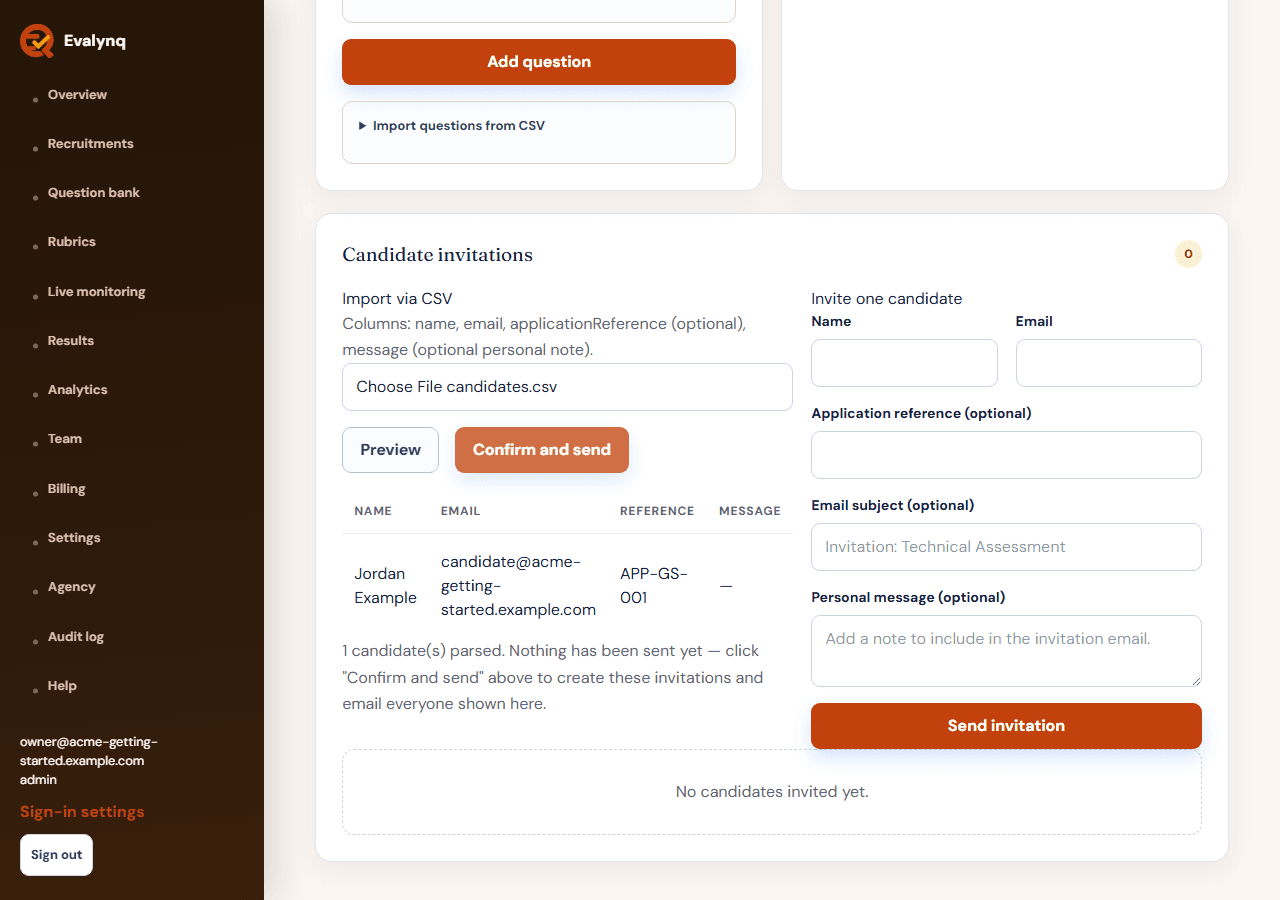
  • Import a CSV of candidates: the app previews exactly who will be invited before anything actually sends, so a bad file can't silently email the wrong list.
  • Or invite one candidate directly, with an optional custom subject/message and extra accommodation minutes for that candidate.
  • Opening and expiry reminder emails send automatically — nothing to schedule by hand.
The candidate CSV import preview table, showing who will be invited before anything is sent
8

What the candidate sees

A calm, self-contained flow — no account or password required on their side.

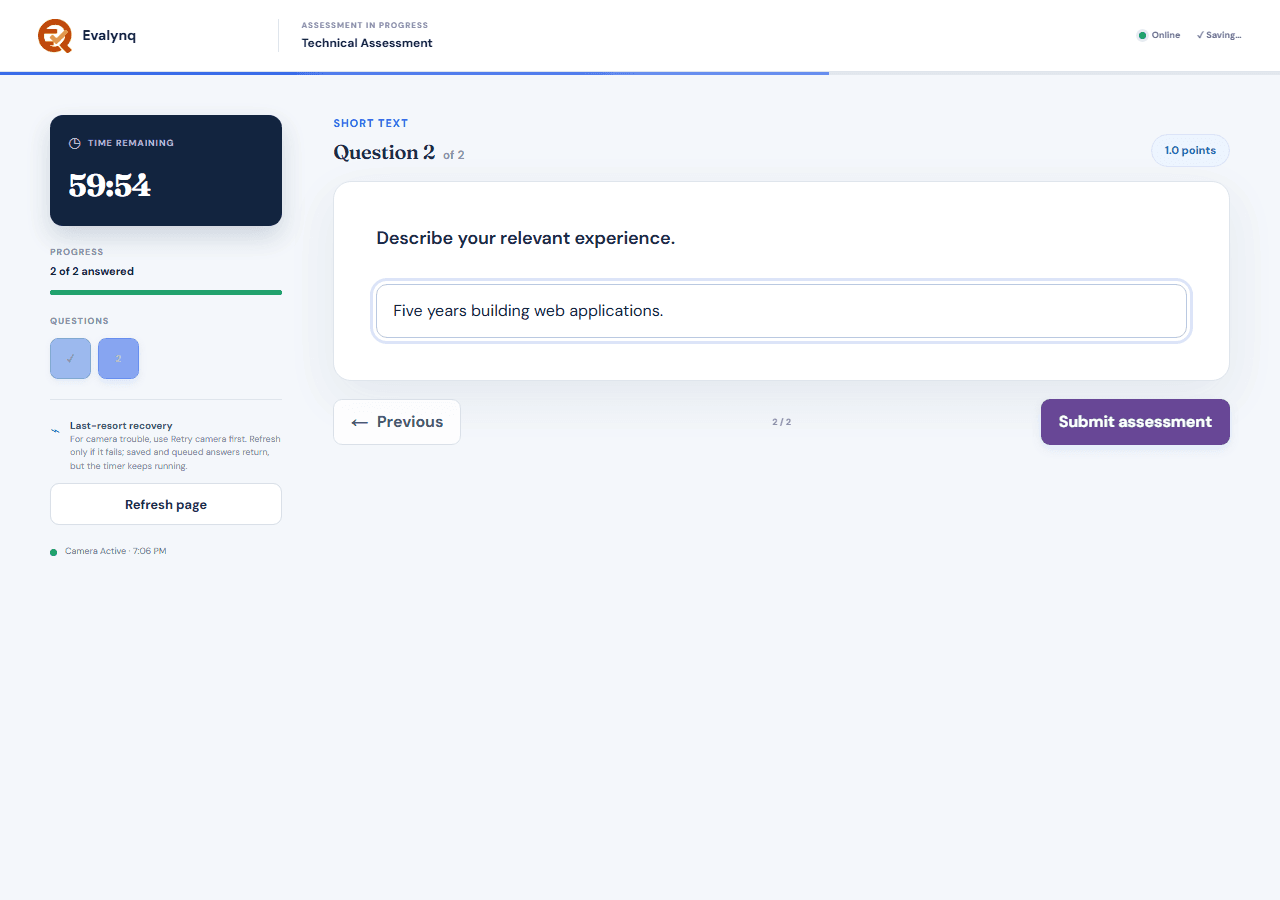
  • Identity, camera, and room-scan checks (where required) happen before the timer starts, so getting ready never costs the candidate time.
  • Answers autosave with a visible status, and there's a clear confirmation once submission succeeds.
  • Candidates never pay to take an assessment and are never asked for payment details.
Read the full candidate guide →
The candidate's own assessment screen, showing the timer, progress, and answer field
9

Watch attempts in progress

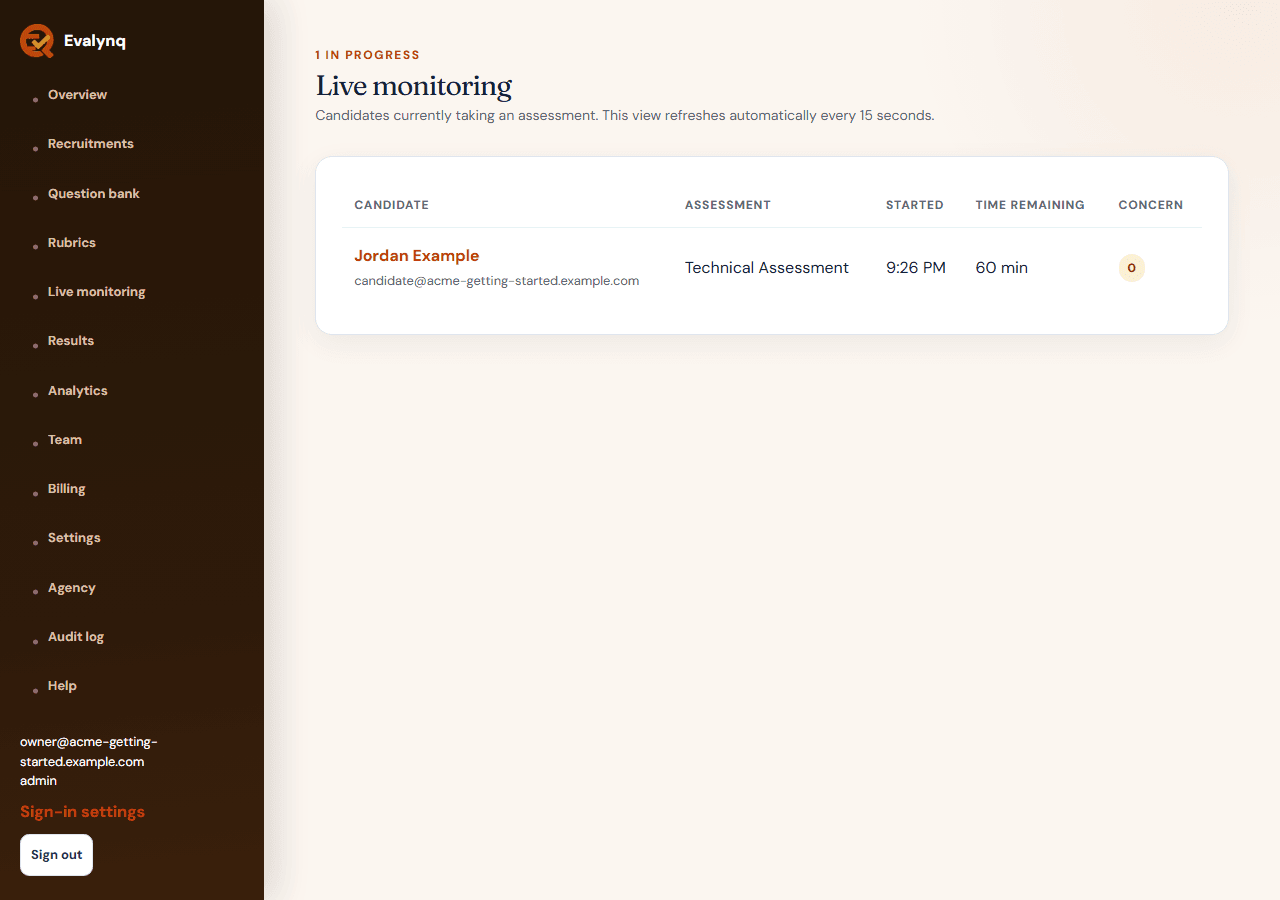
The Live page shows every candidate currently mid-assessment, auto-refreshing.

  • Useful for a support window — you can see who's started, who's close to their deadline, and who may need a reset.
The Live page, showing a candidate's attempt currently in progress with elapsed time
10

Review and score

Objective questions are already scored the moment a candidate submits. Everything else needs a person.

  • Score written and file-upload answers from the results page. If a rubric is attached, score it criterion by criterion — the weighted total becomes the answer's score.
  • More than one reviewer can score the same rubric independently, so a second opinion is never a re-do.
  • Where AI grading assistance is enabled, a reviewer can request a suggested score — it prefills the form but is never saved until a person reviews it and clicks Save.
  • If monitoring flagged anything, a reviewer clears the proctoring concern with a comment before results can be released — this is advisory review, never an automatic accusation.
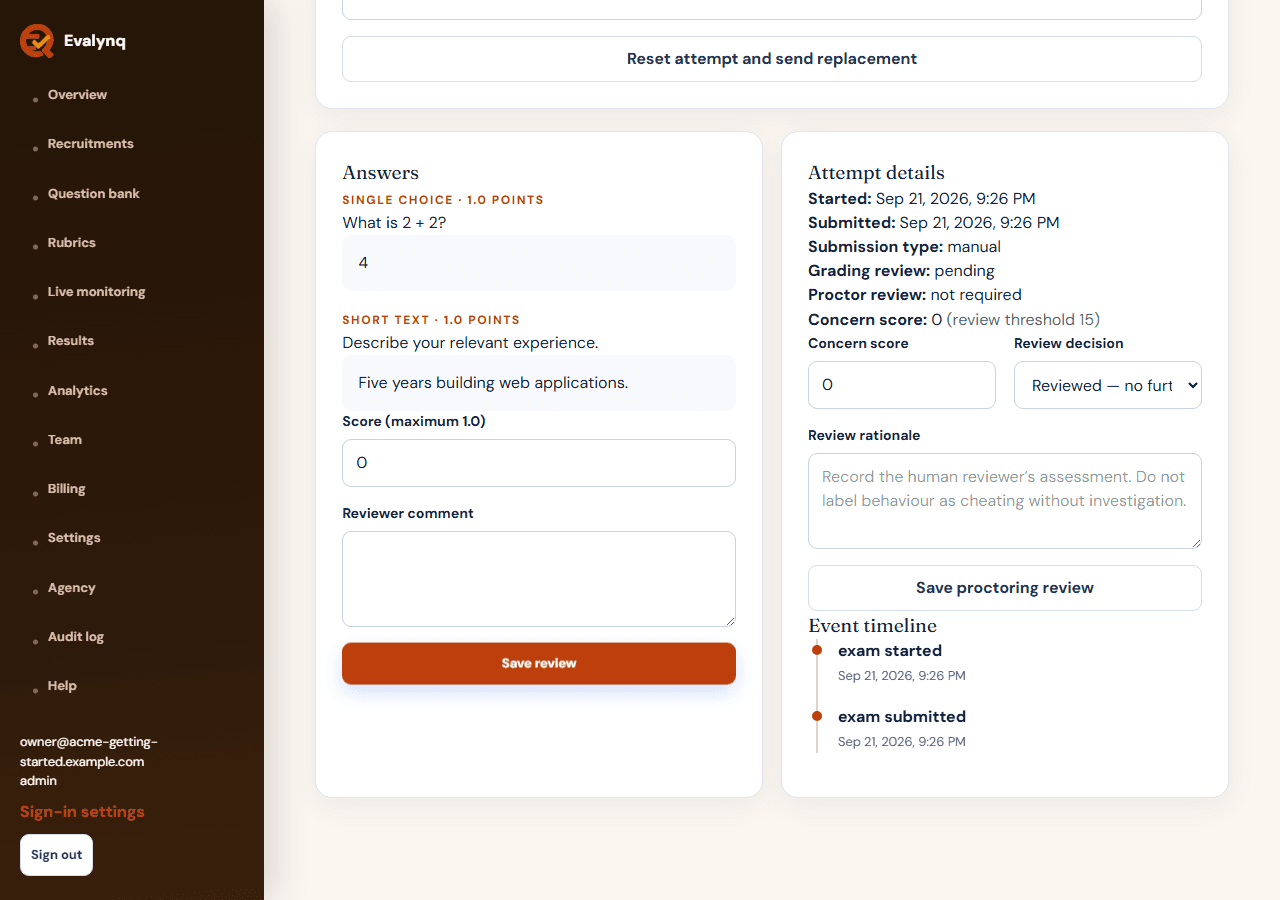
The results detail page, showing a candidate's written answer with the manual scoring form
11

Release results

Nothing is shown to a candidate automatically — not even a fully objective, unmonitored assessment.

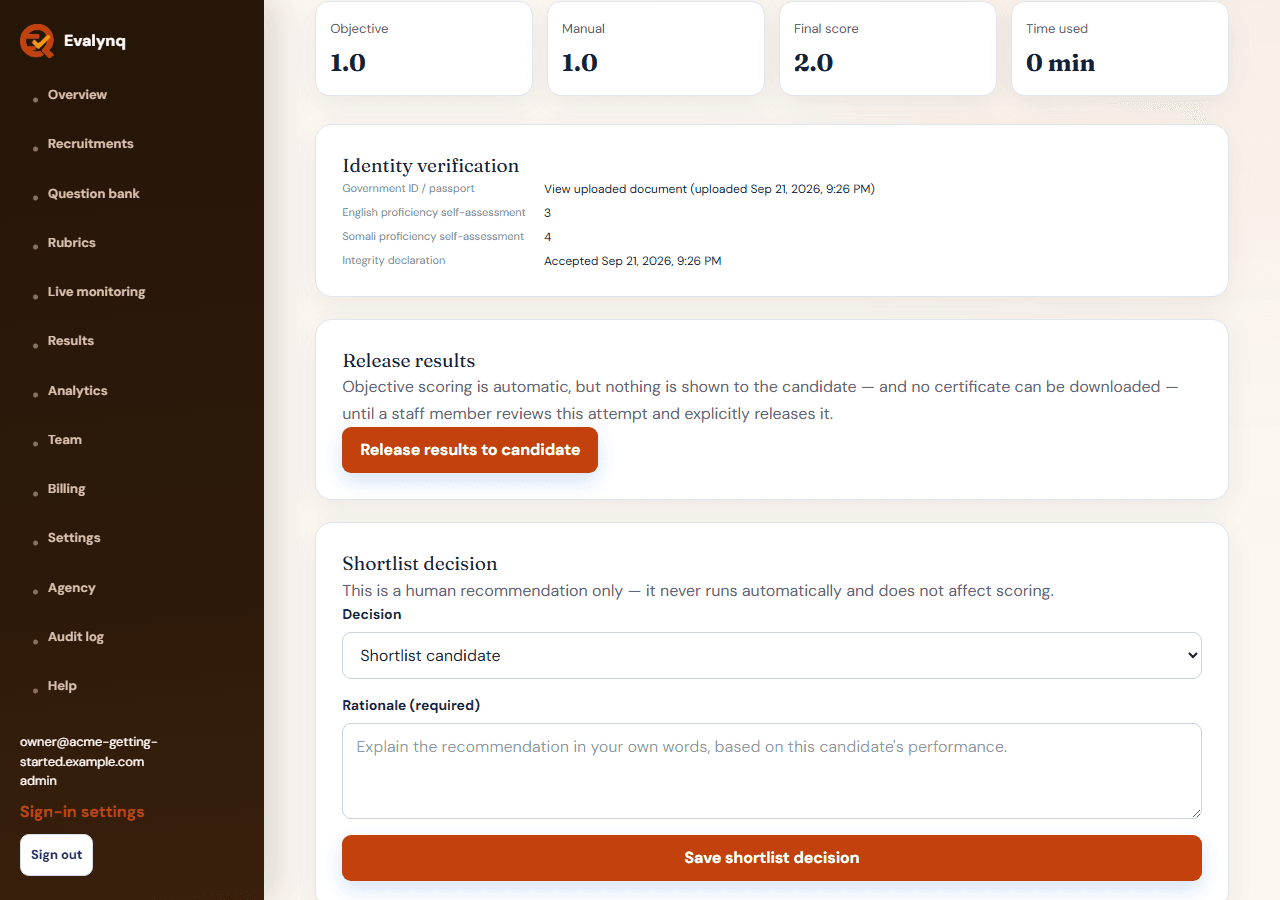
  • Once grading and (where applicable) proctoring review are both cleared, click Release results to candidate. Only then can they see a score or download a certificate.
  • Shortlisting is a separate, explicit human decision with a required written rationale — never computed from the score automatically.
  • Once shortlisted, you can send an interview invitation with a date, time, and location straight from the same page.
The results detail page, showing the completed grading review and the Release results to candidate button
12

Export and share results

Share decision-ready outputs without giving every stakeholder dashboard access.

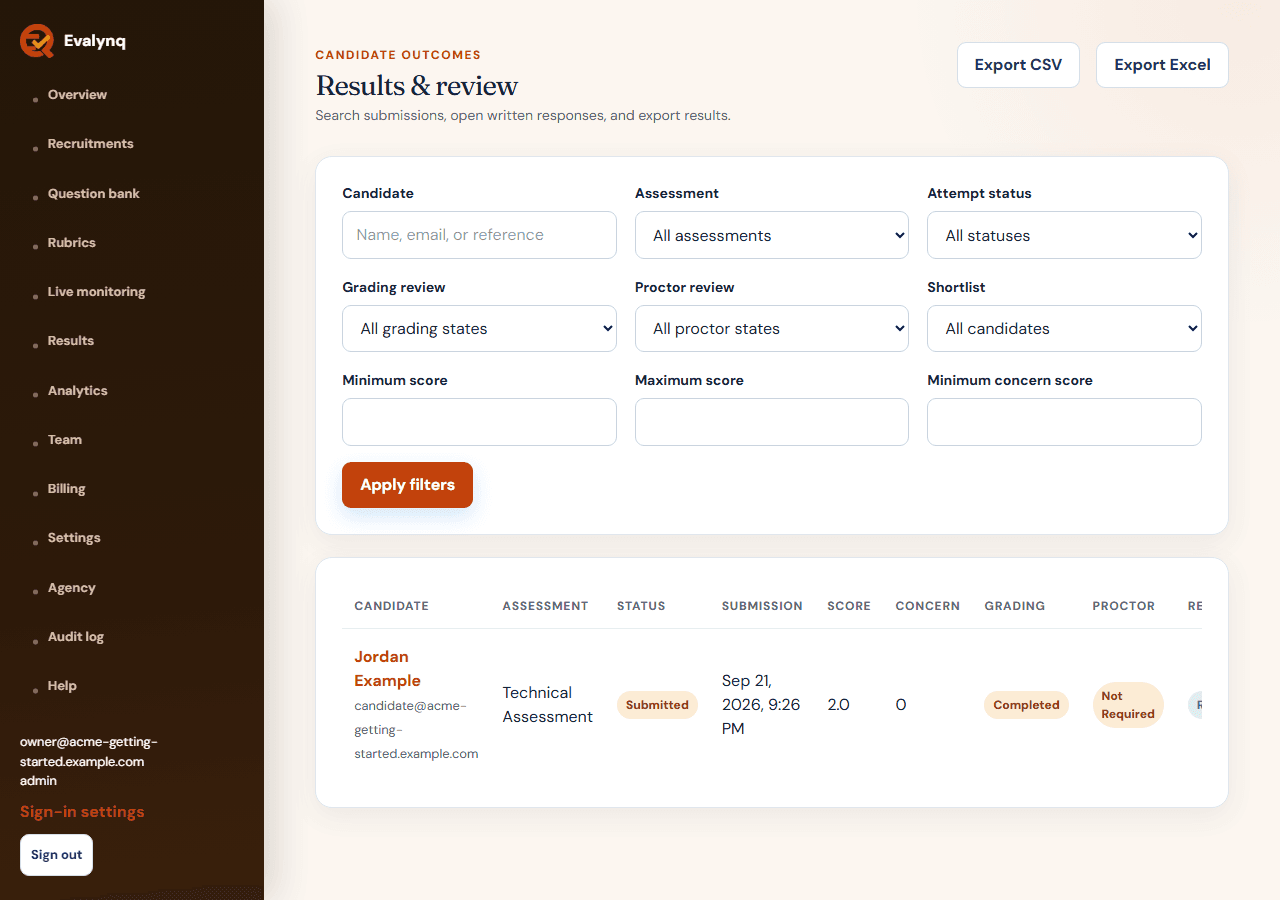
  • The results list filters by candidate, status, score, and more, and exports to CSV or Excel.
  • Each attempt has a one-page PDF report (score, review, rubric detail) and a full evidence-and-answers ZIP bundle for anyone who needs the complete record.
See a sample report →
The results list page, showing filters and the CSV/Excel export options
13

Invite your team

Add teammates with a role that matches what they should actually be able to do.

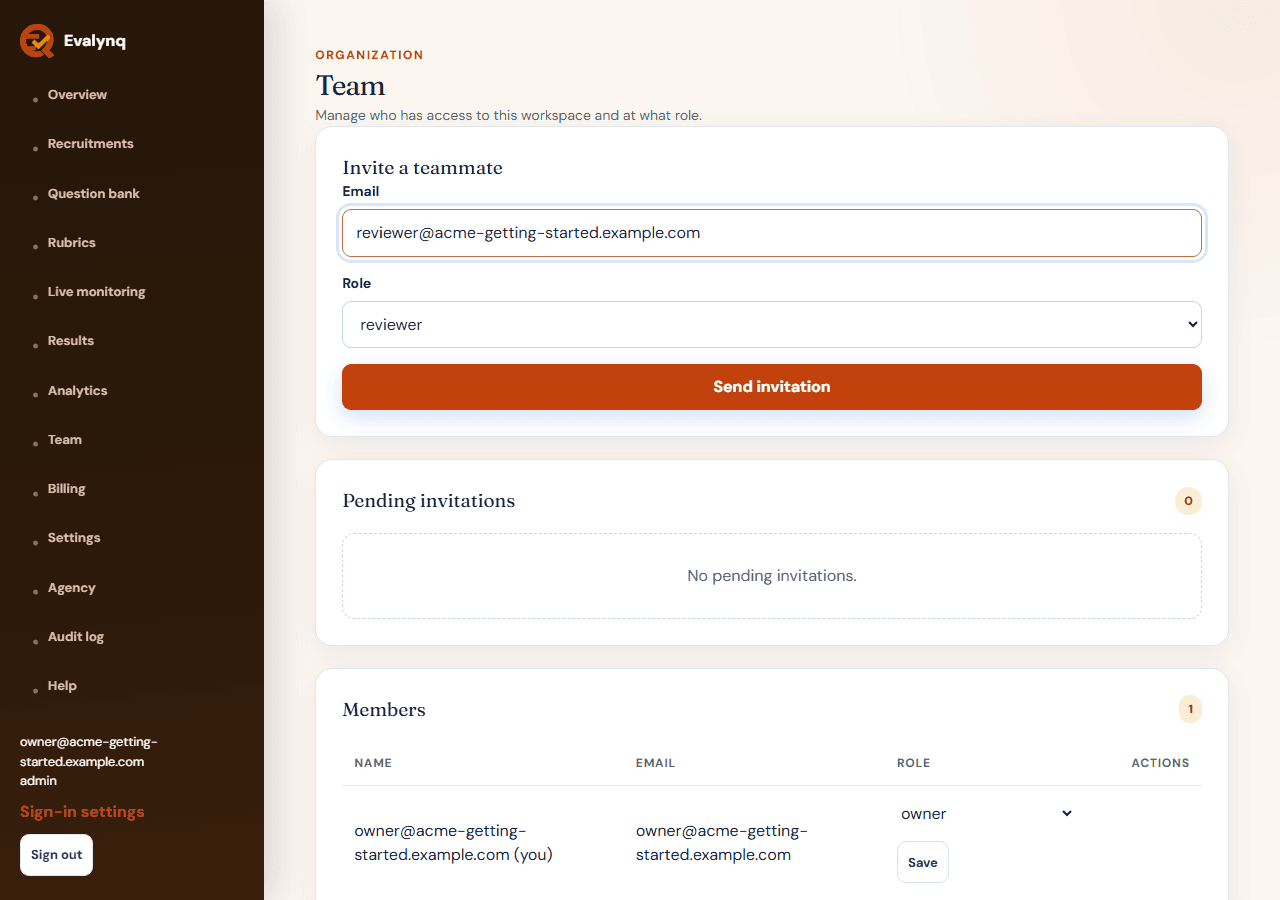
  • Owner, Admin, Assessment Manager, Reviewer, Viewer, or Billing — each role sees a different slice of the dashboard.
  • A Reviewer only ever sees the recruitments they've been explicitly assigned to, never the whole organization's candidates by default.
The Team page, showing the invite-a-teammate form and role selector
14

Pay as you go

Evalynq is pay-as-you-go, not a subscription — see full pricing for the self-service and managed rates.

  • Creating an account and building draft assessments are free. Live assessment access requires verified offline payment and manual activation, unless an administrator explicitly grants the one-time Early Access trial.
  • The Early Access trial is one per organization, one assessment, 1–10 candidate starts, and 30 days from grant. It waives payment only and does not raise plan entitlements.
  • Self-service pricing is $10 per assessment plus $10 per candidate who successfully starts. There's no card checkout: you pay offline and upload your receipt from Billing → Assessment activation. After Evalynq verifies your payment, a platform administrator activates the assessment and adds the approved candidate starts.
  • One candidate start is used when a candidate completes readiness checks and creates their attempt (clicking Start assessment), just before the timer begins. Sending or opening an invitation never uses one, resuming an attempt never uses a second, and unused starts stay in your balance — they don't expire.
  • Need more candidates? Submit a top-up request the same way. Approved candidate starts are added after the top-up payment is verified, and a top-up is charged per candidate only, with no second assessment fee.
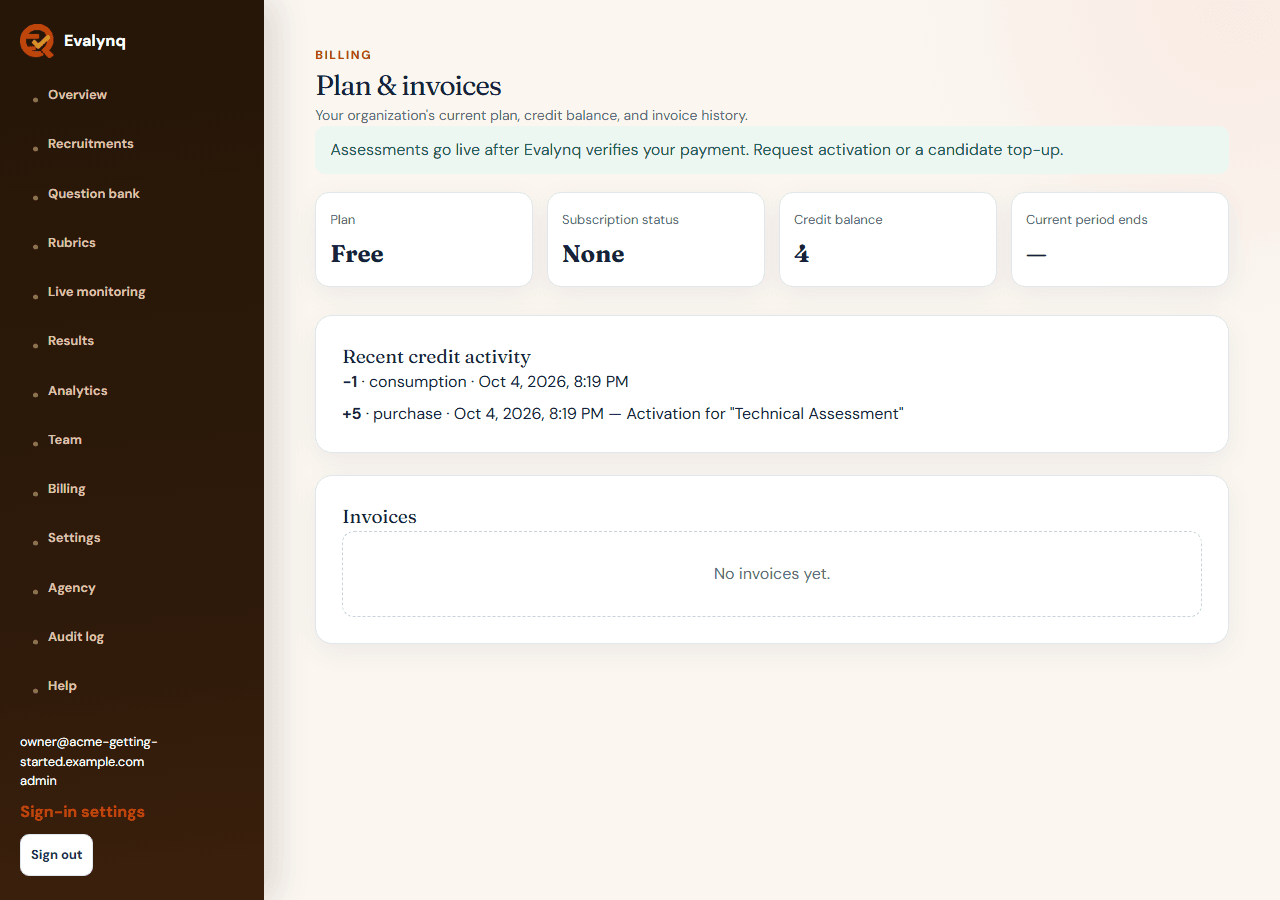
  • Your Billing page shows your candidate starts remaining, credit activity, invoices, and the status of every activation or top-up request.
See full pricing →
The Billing page, showing the organization's plan, credit balance, and invoice history

Common questions

A few things that come up before or during setup.

Can I try this before inviting real candidates?

  • Every new organization gets a demo assessment to explore and edit immediately. Live assessments require verified payment and platform-admin activation unless an administrator explicitly grants the organization its one-time Early Access trial: one assessment, 1–10 starts, and 30 days from grant. The trial waives payment only and does not bypass plan entitlements.

What happens when candidate starts run out?

  • New invitations pause once your balance reaches zero, and a candidate who hasn't started yet can't begin a new attempt until you top up. Submit a top-up request with your payment proof; approved candidate starts are added after the top-up payment is verified. Any unused Early Access starts expire 30 days after the admin grant, while paid starts remain separate and do not expire.

Can I change an assessment after it goes live?

  • Once a candidate has an attempt, the question set locks to protect fairness. You can still edit assessment settings that don't affect scoring, like the closing time.

Is agency / multi-client access available?

  • Yes — client organizations can be linked to yours for rollup usage reporting. Each client stays a fully separate, isolated organization; your staff need their own account inside a client to work on that client's assessments.

Already signed in? The dashboard has its own quick-reference Help page. Otherwise, create an account or request a demo first.